Convert PowerPoint to PDF in Your Browser
Convert PowerPoint to PDF without installing Office: each slide becomes a sharp PDF page with real text. The deck is drawn on your own device, so the file never leaves it.
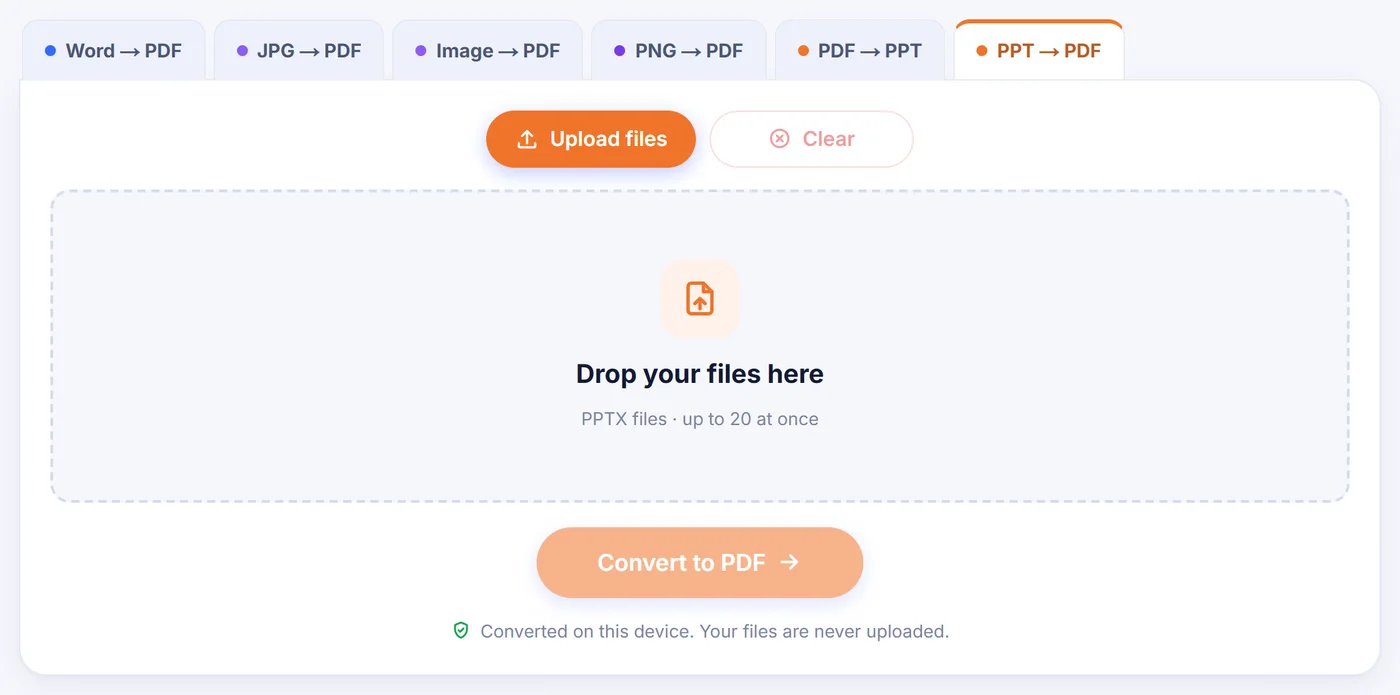
Converted on this device. Your files are never uploaded.
How it works
Drop in your .pptx
Add one deck or a stack of them; empty files are skipped and the rest are opened on your device.
Check the preview and pick a layout
Flip through a live preview, then choose plain slides, notes pages or handouts, and which slides to include.
Save the PDF
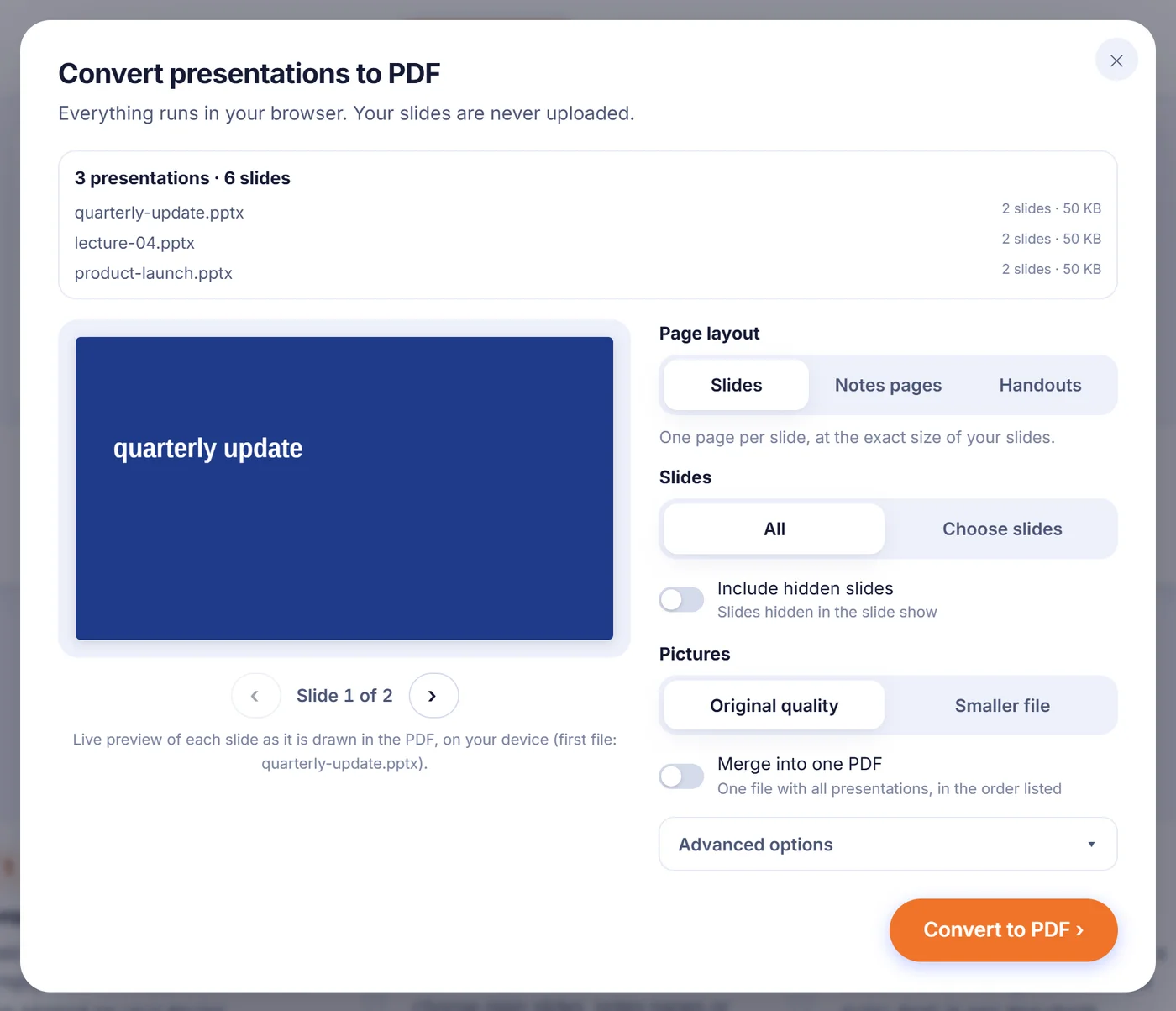
Download each PDF on its own, as a ZIP, or tick the merge switch to get every deck in one document.
Why people turn a slide deck into a PDF
A .pptx file looks right only on a computer that has PowerPoint, the same fonts and a similar version. Send it to a client, a teacher or a print shop and you are gambling. A PDF removes the gamble: it opens in any browser, on any phone, and the slides stay where you put them. It also stops casual edits, which matters for a signed-off proposal or a lecture you hand out to a class.
Typical moments for this conversion: emailing a pitch after the meeting, uploading course slides to a learning platform that only takes PDF, printing speaker notes before a talk, or archiving a quarterly review in a format that will still open long after the original software has changed.
How the PowerPoint to PDF conversion works here
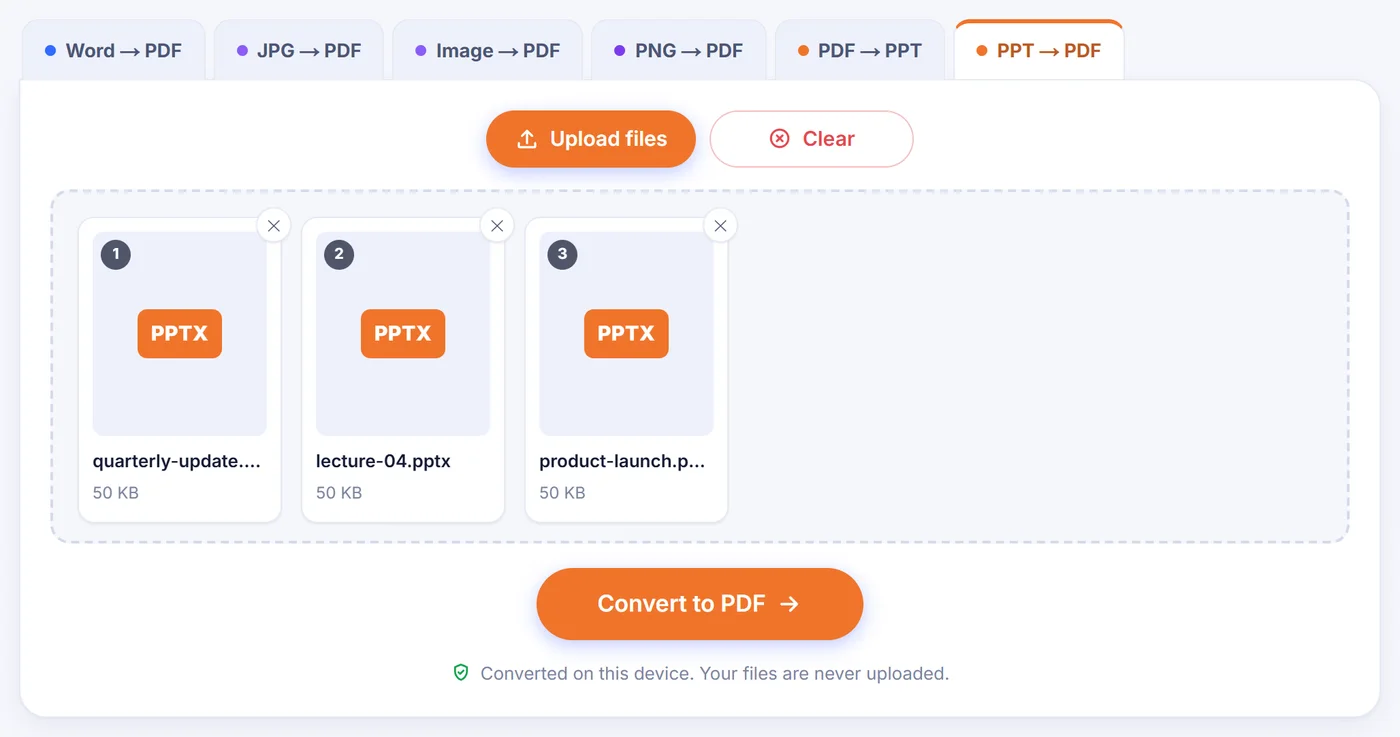
When you add a presentation, the page unpacks it right in the browser tab and reads each slide together with its layout, master and theme, the same chain of inheritance PowerPoint uses. Every slide is then drawn onto a PDF page. A settings window opens with a preview you can step through using the arrow buttons or the left and right keys. Each preview is rendered by the same engine that writes the PDF, so what you see is how the slide will be drawn (pictures are shown at lower resolution to keep browsing fast). With several decks, the preview shows the first one.
Page layout
- Slides gives one PDF page per slide at the precise size of your deck, whether that is 16:9, 4:3 or a custom format.
- Notes pages places each slide at the top of a sheet with its speaker notes written underneath. Slides without notes get a short line saying so, which makes gaps easy to spot.
- Handouts fits 2, 3, 4, 6 or 9 numbered slides on each sheet. The 3-per-page option adds ruled lines next to each slide for the audience to write on.
Notes pages and handouts are laid out on A4 or US Letter paper. The tool picks a default from your browser language, and you can switch it. Long speaker notes simply continue on an extra sheet.
Choosing slides
Leave the default to export everything, or pick "Choose slides" and type something like 2-6, 9, 12-last. Hidden slides are left out unless you turn on the hidden-slides switch; a hidden slide whose number you type yourself is always included. With several decks, the same numbers are applied to each one, and the button stays disabled if a number does not exist in one of them.
Pictures and extras
"Original quality" copies PNG and JPEG pictures byte for byte. "Smaller file" scales photos down to about 150 dpi at the size they appear on the slide and stores them as JPEG, which is the better choice for email attachments. Under the advanced options you can keep clickable links (web addresses and jumps to other slides), add bookmarks built from slide titles so readers can navigate from the PDF sidebar, and show a dashed frame wherever a chart or diagram could not be reproduced.
What carries over, and what may look different
Text stays real text, so it can be searched, selected and copied in any PDF reader. Shapes, gradients, lines and arrows are drawn as vectors and remain crisp when zoomed. Tables keep their cell colours and borders, SmartArt is rebuilt from the drawing PowerPoint saves inside the file, and common charts (bar, column, line, area, pie, doughnut, scatter, bubble and radar) are redrawn from the numbers stored with them. When a SmartArt graphic has no saved drawing, a simplified layout is used instead. The title, author, subject and keywords of the presentation are copied into the PDF properties.
A few things deserve a heads-up:
- Fonts are substituted. Sans-serif text uses Liberation Sans, which has the same widths as Arial; serif faces map to Times and monospaced ones to Courier. Line breaks are tuned for common typefaces such as Calibri or Aptos, but a decorative brand font will not look identical.
- Some content is skipped. EMF and WMF pictures, images linked from outside the file and ink drawings cannot be drawn. Newer chart types such as waterfall or treemap appear as a marked frame. Videos and embedded objects show their preview picture.
- Animations become still pages. A PDF has no slide show timeline, so every object appears at once.
After converting, the result window lists anything that was skipped or simplified, so you know which slides to double-check.
Fixing common problems
"Old PowerPoint format (.ppt)". Only the modern Open XML format is read. Open the file in PowerPoint, Keynote, Google Slides or LibreOffice Impress, save it as .pptx and try again.
Password-protected deck. An encrypted presentation cannot be opened in a browser. Remove the password in PowerPoint under File, Info, Protect Presentation, save, and convert the new copy.
"The file looks damaged". This usually means an interrupted download or a truncated email attachment. Fetch the file again.
Huge deck on a phone. Big presentations with dozens of full-resolution photos can exhaust a phone's memory. Pick "Smaller file", export a range of slides at a time, or use a laptop.
Several presentations at once
Add up to 20 decks and they are all converted in one pass, each into its own PDF named after the original file. A deck that cannot be opened, for example an old .ppt, is skipped with a short notice and the others carry on. Download the results one by one or together as a ZIP. If you would rather have a single document, switch on "Merge into one PDF" and the decks are joined in the order shown in the list, which is handy for a conference pack or a full semester of lecture slides. The merged file is named after the first deck; it keeps every page and link to websites, but slide-title bookmarks are only added to separate PDFs. A cancel button stops a long job and brings you back to the settings.
Your slides stay on your computer
Many decks hold sales figures, salaries or unreleased plans. Here the conversion code is downloaded to your browser and runs there; the presentation itself is never sent anywhere. There is nothing stored on a server and nothing to delete afterwards. Close the tab and the slides and the PDF are gone from memory. There is no sign-up, no email field and no watermark on the output.
Frequently asked questions
How do I convert PowerPoint to PDF without PowerPoint installed?
Drop the .pptx file on this page, choose a layout and press the button. The slides are rendered by your browser, so neither Office nor any plug-in is needed.
Can I save a PowerPoint as PDF with speaker notes?
Yes. Choose "Notes pages" and each slide is printed at the top of an A4 or Letter sheet with its notes below it.
How do I print PowerPoint handouts as a PDF?
Pick "Handouts" and set 2, 3, 4, 6 or 9 slides per page. The 3-slide version includes lines for writing notes beside each slide.
Will links and hyperlinks still work in the PDF?
Web links and links that jump to another slide stay clickable by default. You can also add bookmarks from slide titles for quick navigation.
Why does my PDF use a different font than my slides?
The converter does not use the fonts installed on your computer or fonts embedded in the deck. Text is set in Liberation Sans, Times or Courier with spacing adjusted to the original typeface, so the layout stays close, but brand fonts will look different.
Can I convert an old .ppt file?
Not directly. Re-save it as .pptx in PowerPoint, Google Slides, Keynote or LibreOffice Impress first, then convert that copy.
Is it safe to convert confidential presentations?
The file is processed inside your browser tab and never uploaded, so it does not leave your device at any point.